How to Export Google Reviews to CSV or Excel (2026)
4 ways to export Google Reviews to CSV or Excel — free and paid methods compared. Download Google business reviews, ratings, and reviewer data.
Google Reviews are one of the most valuable data sources for local businesses, marketing agencies, and competitive analysts. A restaurant with 500 five-star reviews is clearly doing something right. A plumber with 50 reviews averaging 3.2 stars has quality issues. But Google does not offer a simple “Export Reviews” button. If you want Google review data in a spreadsheet — reviewer names, star ratings, review text, dates, and responses — you need a workaround.
This guide covers 4 ways to export Google Reviews to CSV or Excel in 2026, from free manual methods to automated Chrome extensions. We compare each method on ease of use, speed, data fields captured, and cost so you can choose the right approach for your needs.
Why Export Google Reviews to CSV?
Before diving into methods, here is why businesses and agencies need Google review data in a spreadsheet:
Sentiment analysis at scale. Reading 500 reviews on Google Maps is impractical. Exporting them to CSV lets you search for keywords (“slow service,” “friendly staff,” “overpriced”), count positive vs negative mentions, and identify patterns that are invisible from browsing.
Competitive benchmarking. Export reviews for your business and your top 5 competitors. Compare average ratings, review volume, response rates, and common complaint themes. This competitive data drives actionable strategy — if every competitor gets complaints about parking but you have ample parking, that is a marketing differentiator worth highlighting.
Client reporting for agencies. Marketing and SEO agencies managing local businesses need to track review metrics over time. Monthly CSV exports create a timeline: “Client gained 23 new reviews this month, average rating improved from 4.1 to 4.3, response rate is 95%.” This reporting is only possible with exported data.
Review response tracking. Exporting reviews with owner responses lets you audit which reviews have been answered and which are still pending. For multi-location businesses with hundreds of reviews per location, this is essential for maintaining response rates.
Legal documentation. Businesses dealing with fake reviews or defamation need documented evidence. Exported CSV files with timestamps, reviewer names, and review text serve as records that can be presented in disputes or legal proceedings.
Training and quality improvement. Restaurant groups, hotel chains, and service businesses export reviews to identify training needs. If 15% of reviews mention “long wait times,” that is a staffing or process issue. If “rude staff” appears in 8% of reviews, that is a training issue. These percentages are calculable only from exported data.
Method 1: Manual Copy-Paste (Free)
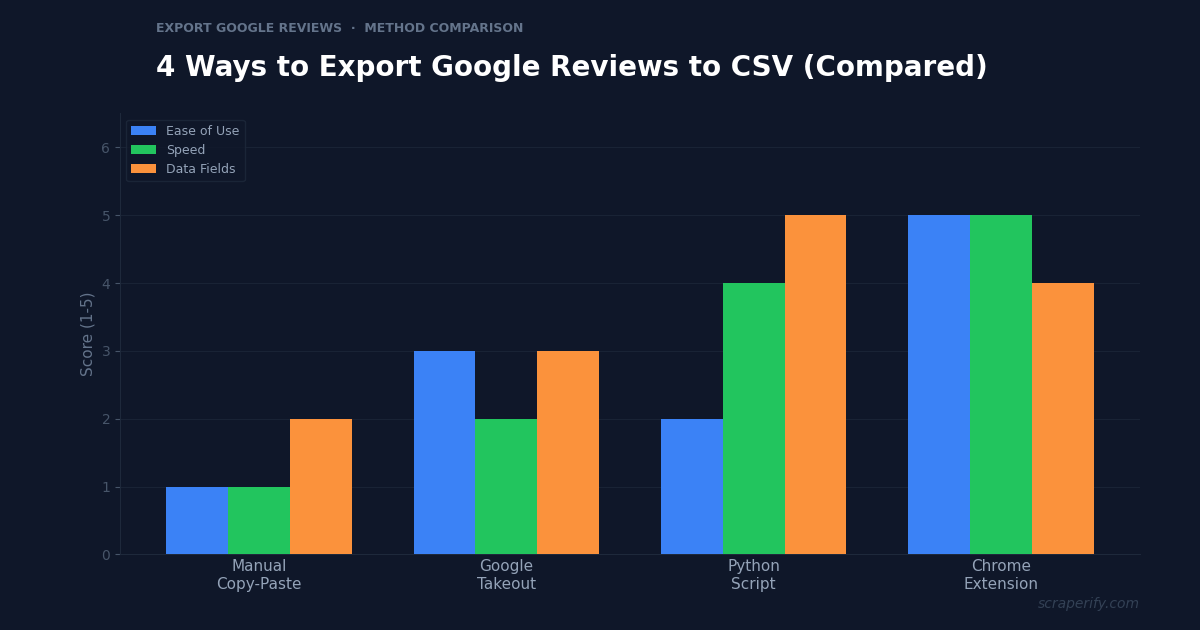
Ease of use: ★☆☆☆☆ | Speed: ★☆☆☆☆ | Data fields: ★★☆☆☆
The most basic method — no tools required, but painfully slow.
How it works:
- Go to Google Maps and search for the business
- Click on the reviews section
- Scroll through reviews, loading more as you go
- For each review, copy the reviewer name, rating, review text, and date
- Paste into a spreadsheet row by row
What you get: Reviewer name, star rating (counted manually from the stars), review text, approximate date.
What you miss: Exact timestamps, reviewer profile URLs, owner response text, review photos, total review count, business metadata.
Realistic time: 2-3 minutes per review. For 100 reviews, expect 3-5 hours of tedious copy-paste work.
When to use this method: Only when you need fewer than 10 reviews and have no budget for tools. For anything beyond that, the time cost makes this method impractical.
Method 2: Google Takeout (Free, Limited)
Ease of use: ★★★☆☆ | Speed: ★★☆☆☆ | Data fields: ★★★☆☆
Google Takeout lets you download your own Google data — including reviews you have written and reviews your business has received (if you own a Google Business Profile).
How it works:
- Go to takeout.google.com
- Deselect all data types, then select “Google Maps” or “Google Business Profile”
- Click “Create export”
- Wait for Google to prepare your data (can take hours to days)
- Download the ZIP file and extract the review data
What you get: Your own reviews or reviews of your business, with ratings, text, dates, and responses.
What you miss: Competitor reviews (you can only export your own data), real-time data (export takes hours), and the data format is not always clean CSV — it may require parsing.
Realistic time: 5 minutes to set up, but hours to days waiting for Google to generate the export.
When to use this method: When you need your own business reviews in bulk and do not mind waiting. Not useful for competitor analysis or market research because you can only export data you own.
Method 3: Python Scripts and APIs (Free, Technical)
Ease of use: ★★☆☆☆ | Speed: ★★★★☆ | Data fields: ★★★★★
For developers, Python scripts using the Google Places API or web scraping libraries can extract review data programmatically.
How it works:
- Set up Python environment with required libraries (requests, BeautifulSoup, or google-maps-services)
- Obtain a Google Places API key (requires a Google Cloud account and billing)
- Write a script to query the API for business reviews
- Parse the JSON response and save to CSV
What you get: Reviewer name, rating, review text, timestamp, reviewer profile URL, business name, address, total rating, total review count.
What you miss (API limitation): The Google Places API returns only the 5 most recent reviews per business. This is a hard limit imposed by Google — no amount of API calls will return the full review history.
Cost: The Places API charges $17 per 1,000 requests for the “Place Details” endpoint. For 100 businesses, that is roughly $1.70. Cheap, but requires a Google Cloud billing account.
Realistic time: 2-4 hours for initial setup (Python, API key, writing the script). After that, running the script takes minutes.
When to use this method: When you need review data for many businesses (100+) and are comfortable with Python. The 5-review-per-business limit is the major drawback — for full review history, you need a different approach.
Method 4: Chrome Extensions (Easiest)
Ease of use: ★★★★★ | Speed: ★★★★★ | Data fields: ★★★★☆
Chrome extensions designed for scraping Google reviews extract data directly from the browser — no coding, no API keys, no 5-review limit.
How it works:
- Install a review scraper Chrome extension from the Chrome Web Store
- Navigate to the business on Google Maps
- Open the reviews section
- Click the extension to extract and export reviews
- Download as CSV, Excel, or JSON
What you get: Reviewer name, star rating, full review text, review date, owner response, reviewer profile link, review photos, and more — all reviews visible on the page, not limited to 5.
What you miss: Reviews that Google has filtered (removed for policy violations). Chrome extensions can only capture what Google displays.
Realistic time: 2-5 minutes for 100 reviews (scroll to load reviews, click export). No setup time beyond installing the extension.
When to use this method: For most use cases — single business review exports, competitor analysis, client reporting, and market research. The combination of speed, ease of use, and comprehensive data makes Chrome extensions the best option for non-technical users.
GOOGLE REVIEWS EXPORT: METHOD COMPARISON
| Method | Cost | Speed (100 reviews) | Coding? | Review Limit | Competitors? |
|---|---|---|---|---|---|
| Manual Copy-Paste | Free | 3-5 hours | No | None | Yes |
| Google Takeout | Free | Hours-days | No | None | No (own data only) |
| Python + API | ~$2/1K requests | ~5 min (after setup) | Yes | 5 per business | Yes |
| Chrome Extension | Free tier | 2-5 min | No | None | Yes |
What Data Fields Can You Export from Google Reviews?
When you export Google Reviews to CSV using a Chrome extension, here are the data fields you can capture:
Review data:
- Reviewer name — the Google account name
- Star rating — 1-5 stars
- Review text — full text of the review
- Review date — when the review was posted
- Review language — auto-detected language
- Likes count — how many people found the review helpful
- Photos — URLs to photos attached to the review
Business owner response:
- Response text — the owner’s reply to the review
- Response date — when the owner responded
- Response status — whether the review has been responded to
Reviewer profile data:
- Reviewer profile URL — link to the reviewer’s Google profile
- Reviewer contribution level — Local Guide level (if applicable)
- Total reviews by reviewer — how many reviews this person has written
Business metadata:
- Business name — the business being reviewed
- Business address — full address
- Business category — restaurant, plumber, dentist, etc.
- Overall rating — the business’s average star rating
- Total review count — total number of reviews
This data in a spreadsheet enables analysis that is impossible from browsing Google Maps — keyword frequency analysis, sentiment tracking, response rate auditing, and competitive benchmarking.
5 Ways to Use Exported Google Review Data
1. Competitive Review Analysis
Export reviews for your business and your top 5-10 competitors. Compare:
- Average rating — where do you stand relative to competitors?
- Review volume — are competitors getting reviewed more frequently?
- Common complaints — what do customers complain about across the industry?
- Response rates — what percentage of reviews get owner responses?
If your competitors average 4.5 stars with 300+ reviews and you have 4.1 stars with 80 reviews, the data tells you exactly where you need to improve and how much ground you need to cover.
2. Keyword and Sentiment Analysis
Export 200+ reviews and search the text column for keywords:
- Positive signals: “amazing,” “best,” “recommend,” “friendly,” “fast”
- Negative signals: “slow,” “rude,” “expensive,” “dirty,” “worst”
- Service-specific terms: “wait time,” “appointment,” “parking,” “price”
Count the frequency of each keyword. If “wait time” appears in 18% of negative reviews, that is your #1 operational issue to fix. If “friendly staff” appears in 40% of positive reviews, that is your strongest differentiator to highlight in marketing.
3. Review Response Management
For businesses with hundreds of reviews across multiple locations, keeping track of which reviews have been responded to is a real challenge. Export all reviews with the response status field. Filter for reviews without owner responses. Prioritize responding to recent negative reviews first, then work through older unresponded reviews. This systematic approach ensures no review falls through the cracks.
4. Fake Review Detection
Fake reviews are a growing problem. Exported review data makes detection easier:
- Reviewers with only 1 review on their profile are more likely to be fake accounts
- Multiple reviews posted on the same day for the same business suggest coordinated manipulation
- Generic review text (“Great service! Highly recommended!”) without specific details is a red flag
- Reviewers who also reviewed competitors might be part of a review exchange scheme
By exporting reviewer profile data (total reviews, Local Guide level) alongside review text, you can flag suspicious patterns and report them to Google.
5. Monthly Reporting and Trend Tracking
Export Google reviews monthly and track trends:
- New reviews per month — is review velocity increasing or decreasing?
- Average rating by month — is quality improving over time?
- Response rate by month — is the team keeping up with responses?
- Top complaint themes by month — are operational improvements reflected in reviews?
This monthly reporting creates accountability and demonstrates the ROI of customer experience investments. Agencies managing local SEO for clients use this data to show concrete improvements — “Average rating improved from 3.8 to 4.4 over 6 months after implementing the review response strategy we recommended.”
Need to export local business data?
Scraperify’s Yelp Scraper Chrome Extension exports business listings, reviews, phone numbers, and ratings to CSV — similar review data from Yelp’s 1.7M+ business database.
Try the Yelp Scraper — FreeBest Chrome Extensions for Exporting Google Reviews
Several Chrome extensions can export Google Reviews to CSV. Here are the top options in 2026:
Google Reviews Scraper Extensions
Most Google review scraper extensions work similarly: navigate to a business on Google Maps, open the reviews panel, scroll to load reviews, and click the extension to export. Look for extensions that capture:
- Full review text (not truncated)
- Owner responses
- Reviewer profile data
- CSV and Excel export formats
Scraperify for Local Business Data
While Google Reviews are one data source for local business intelligence, Yelp is another major source with complementary data. The Yelp Scraper Chrome Extension by Scraperify exports business listings with phone numbers, websites, addresses, reviews, and ratings — data that Google Reviews alone does not provide.
For comprehensive local business research, combine Google Review exports with Yelp data exports. Google Reviews provide customer sentiment and rating trends. Yelp provides contact information (phone, website, address) and additional review perspectives. Together, they give you the complete picture of any local business’s reputation and contact details.
Scraperify also offers Chrome extensions for exporting data from 13+ other platforms — eBay, Instagram, Facebook Marketplace, Walmart, and more. Browse the full suite at scraperify.com.
Tips for Exporting Google Reviews Effectively
Sort Reviews Before Exporting
Google Maps lets you sort reviews by “Most relevant,” “Newest,” “Highest rating,” and “Lowest rating.” Sort before exporting to prioritize the data you need. For competitive analysis, sort by “Newest” to see the most recent customer experiences. For problem identification, sort by “Lowest rating” to focus on complaints.
Scroll to Load All Reviews
Google Maps loads reviews progressively — you need to scroll down to load more. Before exporting with any Chrome extension, scroll through the entire review section to ensure all reviews are loaded. For businesses with 500+ reviews, this may take a few minutes of scrolling. Extensions can only capture what is loaded in the browser.
Export Regularly for Trend Data
A single export is a snapshot. Monthly exports create a trend line. Save each export with a date in the filename (“google-reviews-joes-pizza-2026-07.csv”) and compare metrics over time. This is especially valuable for agencies reporting to clients — showing improvement over months builds trust and justifies fees.
Include Competitor Reviews in the Same Spreadsheet
Export reviews for 5-10 competitors and add a “Business Name” column to each export. Combine into one master spreadsheet. Now you can filter by business, compare ratings side by side, and identify industry-wide patterns. This competitive review database is more valuable than any single-business export.
Cross-Reference with Yelp Data
Google Reviews and Yelp reviews often tell different stories. Some businesses have great Google reviews but poor Yelp reviews (or vice versa). Export both using the Google Reviews method of your choice and the Yelp Scraper Chrome Extension. Combining data from both platforms gives you the most accurate picture of a business’s reputation.
Who Needs to Export Google Reviews?
Local Business Owners — Monitor your own reviews, track sentiment trends, identify operational issues, and ensure all reviews are responded to. Exported data makes review management systematic instead of reactive.
Marketing and SEO Agencies — Export client and competitor reviews for reporting, strategy development, and demonstrating ROI. Monthly review exports are the foundation of effective local SEO management.
Multi-Location Businesses — Restaurant chains, retail franchises, and service businesses with 10+ locations need centralized review monitoring. Exported data across all locations reveals which locations need attention and which are performing well.
Reputation Management Companies — Firms specializing in online reputation use exported review data to monitor, analyze, and respond to reviews at scale. CSV exports feed into dashboards and alerting systems.
Market Researchers — Academics and consultants studying customer satisfaction, service quality, and local business dynamics use exported Google review data as primary research material.
Real Estate Investors — Investors evaluating neighborhoods export reviews for local restaurants, shops, and services to assess area quality. A neighborhood full of 4.5-star businesses signals a thriving community.
Frequently Asked Questions
Can I export Google Reviews for free?
Yes. Manual copy-paste and Google Takeout are completely free. Some Chrome extensions offer free tiers with limited exports. Python scripts using the Google Places API cost roughly $2 per 1,000 requests.
Does Google allow exporting reviews?
Google does not prohibit viewing or copying publicly visible review data for personal use. Google Takeout officially supports exporting your own data. However, always review Google’s Terms of Service for your specific use case, especially for commercial use of exported data.
How many Google Reviews can I export?
With Chrome extensions, you can export all reviews visible on the Google Maps page — there is no hard limit beyond what Google displays. The Google Places API limits results to 5 reviews per business. Manual copy-paste has no limit but is impractically slow for large volumes.
Can I export reviews for any business, or only my own?
Methods 1 (manual), 3 (API with limitations), and 4 (Chrome extension) work for any business with publicly visible Google reviews. Method 2 (Google Takeout) only exports your own data.
What format should I export Google Reviews in?
CSV is the most versatile — it opens in Excel, Google Sheets, Numbers, and imports into any database or analytics tool. Excel (.xlsx) is better for formatted reports. JSON is best for developers feeding data into applications or APIs.
Can I export Google Reviews with photos?
Most Chrome extensions capture the URLs of photos attached to reviews. You can then download the photos separately using the URLs. The review text and rating are always included in the export.
Start Exporting Google Reviews Today
Whether you choose manual copy-paste (free but slow), Google Takeout (free but limited to your own data), Python scripts (powerful but requires coding), or Chrome extensions (fast and easy), the key is getting Google review data into a spreadsheet where you can actually analyze it.
For local business research beyond Google, Scraperify’s suite of Chrome extensions exports data from Yelp (business listings with phone numbers and reviews), Facebook Marketplace (local listings), and 12 other platforms — all with one-click CSV export, local data processing, and no coding required.
Export Local Business Data from Yelp
Scraperify’s Yelp Scraper exports business names, phone numbers, websites, reviews, and ratings — complementing your Google Reviews data.
Try the Yelp Scraper — FreeFree tier · Paid plans from $19.99/month · $79 lifetime