How to Export LinkedIn Contacts to Excel (2026 Guide)
3 ways to export LinkedIn contacts and connections to Excel or CSV — with email addresses. Free and paid methods compared for sales and recruiting.
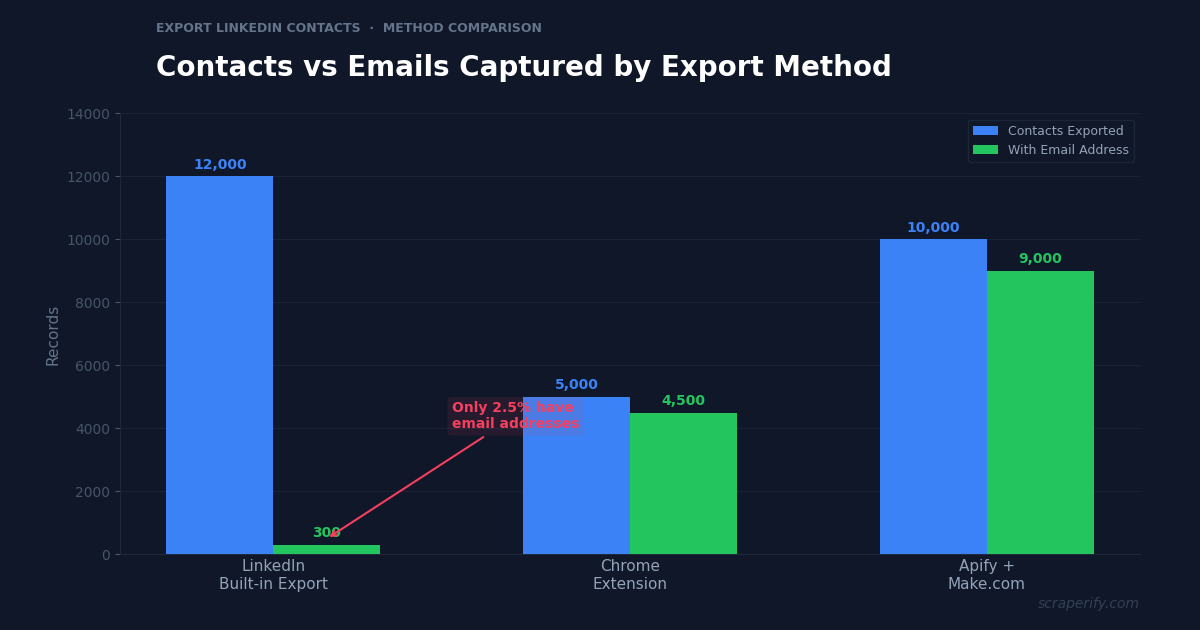
You have 5,000 LinkedIn connections. You need them in a spreadsheet — names, job titles, companies, and ideally email addresses. LinkedIn does let you export your connections, but there is a catch: only about 2.5% of exported contacts include email addresses. The rest are names without contact info — essentially useless for outreach.
This guide covers 3 ways to export LinkedIn contacts to Excel in 2026, from LinkedIn’s free built-in export to Chrome extensions that capture work emails. We compare each method on data completeness, ease of use, cost, and what you actually get in the spreadsheet.
Why Export LinkedIn Contacts to Excel?
LinkedIn is the world’s largest professional network with over 1 billion members. For sales teams, recruiters, marketers, and business developers, LinkedIn connections represent potential clients, candidates, partners, and leads. But LinkedIn is designed to keep you on the platform — it does not make exporting data easy.
Here is why professionals need LinkedIn contact data in a spreadsheet:
Sales prospecting and outreach. B2B sales teams need prospect lists with names, titles, companies, and email addresses. LinkedIn has this data but gatekeeps it behind the platform interface. Exporting to Excel lets you import contacts into CRMs (HubSpot, Salesforce, Pipedrive), email outreach tools (Apollo, Lemlist, Instantly), and build targeted campaigns.
Recruiting and talent sourcing. Recruiters searching for candidates on LinkedIn need to export profiles to share with hiring managers, track in ATS systems, and manage across multiple open positions. Manually copying 50 candidate profiles is an afternoon of work. Exporting to CSV takes minutes.
Networking and relationship management. Professionals with thousands of connections lose track of who they know. Exporting connections to a spreadsheet lets you sort by company, title, or industry — rediscovering valuable contacts you forgot you had.
Market research and competitive intelligence. Analysts studying competitor teams, industry hiring trends, or professional demographics need LinkedIn profile data in a format they can analyze. Export company employee profiles, calculate average tenure, or track hiring velocity — all impossible without exported data.
Account-based marketing. Marketing teams targeting specific companies export LinkedIn profiles of decision-makers (VP, Director, C-suite) at target accounts. This data feeds into personalized ad campaigns, direct mail, and multi-channel outreach sequences.
Method 1: LinkedIn Built-in Export (Free)
Data completeness: ★★☆☆☆ | Ease of use: ★★★★☆ | Speed: ★★☆☆☆
LinkedIn offers a free, official way to export your connections. It is simple but severely limited in the data it provides.
How It Works
- Log into LinkedIn and click your profile picture (top right)
- Go to Settings & Privacy
- Click Data Privacy in the left sidebar
- Click Get a copy of your data
- Select Connections (deselect everything else to speed up the export)
- Click Request archive
- Wait 24 hours for LinkedIn to prepare your data
- Download the ZIP file from the email LinkedIn sends you
- Extract the ZIP and open Connections.csv in Excel
What You Get
| Field | Included? |
|---|---|
| First name | ✓ |
| Last name | ✓ |
| LinkedIn profile URL | ✓ |
| Email address | ~2.5% of contacts |
| Company | ✓ |
| Position/title | ✓ |
| Connected on (date) | ✓ |
The Email Problem
Here is the critical limitation: LinkedIn only includes email addresses for connections who have opted to share their email with their connections. In practice, this is a tiny fraction. One user with 12,000+ connections reported that only about 300 had email addresses in the export — roughly 2.5%. And most of those were personal Gmail or Yahoo addresses, not the work emails that sales teams need.
When to Use This Method
Use LinkedIn’s built-in export when you need a complete list of your connections with names, titles, and companies — and you do not need email addresses. This method is also the only official, LinkedIn-approved way to export your data, so there is zero risk to your account.
Limitations: 24-hour wait time, minimal email coverage, only exports your 1st-degree connections (not search results or 2nd/3rd-degree profiles), and no phone numbers.
Method 2: Chrome Extensions (Best Balance)
Data completeness: ★★★★☆ | Ease of use: ★★★★★ | Speed: ★★★★★
Chrome extensions designed for LinkedIn export data directly from the browser — profiles, search results, and Sales Navigator lists — often with email enrichment built in.
How It Works
- Install a LinkedIn scraper Chrome extension from the Chrome Web Store
- Navigate to LinkedIn search results, a company page, or Sales Navigator
- Click the extension to start extracting profiles
- The extension captures profile data and optionally finds work email addresses
- Export to CSV, Excel, or JSON
What You Get
| Field | Included? |
|---|---|
| First name | ✓ |
| Last name | ✓ |
| Job title | ✓ |
| Company | ✓ |
| LinkedIn profile URL | ✓ |
| Work email (verified) | ✓ (with email finder) |
| Phone number | Sometimes |
| Location | ✓ |
| Industry | ✓ |
| Connections count | ✓ |
| Profile summary | ✓ |
Why Chrome Extensions Are Better Than Built-in Export
Chrome extensions solve the three biggest problems with LinkedIn’s built-in export:
-
Work emails. Extensions like LetsNav and Scraperify integrate email finders that look up verified work email addresses — not personal Gmails, but company-domain emails that actually reach decision-makers.
-
Search results and Sales Navigator. LinkedIn’s built-in export only works for your 1st-degree connections. Chrome extensions export from search results, Sales Navigator lists, and company employee pages — reaching people you are not connected to.
-
Instant results. LinkedIn’s built-in export takes 24 hours. Chrome extensions export data in real time — you see the CSV within minutes of clicking “export.”
Cost
Most LinkedIn scraper Chrome extensions have freemium pricing:
- Free tier: 50-100 exports per month
- Paid plans: $19-$49/month for unlimited exports
- Email credits: Some charge per email found (e.g., $0.05-$0.15 per verified email)
When to Use This Method
Use Chrome extensions when you need work email addresses, want to export LinkedIn search results or Sales Navigator lists, or need data faster than the 24-hour built-in export wait. This is the best method for most sales professionals and recruiters.
Method 3: API and Automation Tools (Most Powerful)
Data completeness: ★★★★★ | Ease of use: ★★☆☆☆ | Speed: ★★★★☆
For teams that need thousands of LinkedIn profiles with enriched contact data, API-based tools and automation platforms provide the most comprehensive solution.
How It Works
- Use a scraping platform like Apify to extract LinkedIn profile URLs from search results
- Connect to Make.com or n8n for workflow automation
- Pipe the profile URLs through an enrichment tool (Apollo, Hunter, or Derek) to find verified emails
- Output the complete data to Google Sheets or a CRM
What You Get
Everything from Method 2, plus:
- Automated workflows that run on schedule (e.g., export new leads every Monday)
- Bulk processing of thousands of profiles
- CRM integration directly into Salesforce, HubSpot, or Pipedrive
- Custom filters and data transformations
Cost
This method has the highest cost but also the highest throughput:
- Apify: $49-$499/month depending on usage
- Make.com: Free tier for basic automations, $9-$29/month for more
- Email enrichment: $0.03-$0.15 per verified email (Apollo, Hunter)
- Total: $100-$500+/month for a full-stack lead generation pipeline
When to Use This Method
Use API and automation tools when you need 1,000+ leads per week, want fully automated lead generation, or need to integrate LinkedIn data directly into your sales stack. This is the method used by growth agencies and enterprise sales teams.
LINKEDIN CONTACT EXPORT: METHOD COMPARISON
| Feature | Chrome Extension | LinkedIn Export | API + Automation |
|---|---|---|---|
| Cost | Free-$49/mo | Free | $100-$500/mo |
| Work emails | ✓ (90%+ match) | ~2.5% | ✓ (90%+ match) |
| Export search results | ✓ | ✗ (connections only) | ✓ |
| Coding required | No | No | Yes |
| Speed | Minutes | 24 hours | Minutes (after setup) |
| Automation | Manual | Manual | Fully automated |
What Data Fields Can You Export from LinkedIn?
Depending on the method you use, here are the data fields you can expect in your LinkedIn contact export:
Basic profile data (all methods):
- First name and last name — full name
- Job title — current position
- Company name — current employer
- LinkedIn profile URL — direct link
Extended data (Chrome extensions and API):
- Work email (verified) — company-domain email address
- Phone number — when available on the profile
- Location — city, state, country
- Industry — professional industry classification
- Company size — number of employees
- Company website — employer’s website URL
- Profile summary — the “About” section text
- Skills — listed skills and endorsements
- Education — schools and degrees
- Experience — full work history with dates
- Connections count — size of their network
- Profile picture URL — avatar image link
Sales Navigator data (extensions with Sales Nav support):
- Lead score — Sales Navigator’s relevance score
- Account data — company revenue, industry, headquarters
- Saved list membership — which Sales Nav lists they belong to
- InMail status — whether they accept InMail
- Recent activity — posts, shares, and engagement
The gap between LinkedIn’s built-in export (6 fields, minimal emails) and a Chrome extension export (16+ fields with verified emails) is enormous. For any professional use case — sales, recruiting, or marketing — the built-in export is a starting point at best.
Need to export professional data?
Scraperify offers Chrome extensions for 40+ platforms. For professional networking data, check out the LinkedIn and Upwork scrapers.
Browse All Scrapers →5 Ways to Use Exported LinkedIn Contact Data
1. Cold Email Campaigns
The primary use case for exported LinkedIn contacts is cold email outreach. Export profiles with verified work emails, segment by job title and company size, and send personalized cold emails using tools like Apollo, Lemlist, or Instantly. A well-targeted LinkedIn export produces response rates 3-5x higher than purchased lead lists because you can filter for exact job titles, industries, and company sizes.
2. Recruiting Outreach
Recruiters export candidate profiles from LinkedIn search results to build talent pipelines. Instead of sending InMails (which have low response rates and cost credits), they export profiles with work emails and reach out directly. A recruiter sourcing 50 senior developers can export all matching profiles, filter by location and experience, and email the top 20 candidates — all in under an hour.
3. Account-Based Marketing Lists
B2B marketing teams build target account lists by exporting LinkedIn profiles of decision-makers at specific companies. Export all VP and C-level profiles at your 100 target accounts, then use this data for LinkedIn ad targeting, personalized direct mail, and multi-channel outreach sequences. The exported data ensures your ads reach the exact people who make purchasing decisions.
4. Networking Audit
Professionals with large networks (5,000+ connections) often do not know who they are connected to. Export your full connection list, sort by company or title, and rediscover valuable contacts you forgot about. Many professionals find that they are already connected to decision-makers at target companies — they just did not realize it because LinkedIn’s interface makes it hard to browse 5,000 connections.
5. Competitive Intelligence
Export employee profiles from competitor company pages. Track headcount growth (are they hiring aggressively?), analyze team structure (how many engineers vs salespeople?), and identify key hires (did they just hire a VP of Product?). This intelligence informs your own hiring strategy, competitive positioning, and market analysis.
Tips for Exporting LinkedIn Contacts Effectively
Start with LinkedIn’s Free Export for Your Connection Base
Before paying for any tool, use LinkedIn’s built-in export to get your full connection list. This gives you names, titles, companies, and connection dates — a solid foundation. Then use a Chrome extension to enrich the data with email addresses for the contacts that matter most.
Use LinkedIn Search Filters Before Exporting
The more precise your LinkedIn search, the more useful your export. Filter by: job title (“VP Marketing”), company size (“51-200 employees”), location (“San Francisco Bay Area”), and industry (“SaaS”). Exporting a targeted search of 200 relevant profiles is more valuable than exporting 2,000 unfiltered profiles.
Verify Email Deliverability Before Sending
Not all email addresses found by enrichment tools are accurate. Before launching a cold email campaign, run your exported emails through a verification service (ZeroBounce, NeverBounce, MailerCheck) to remove bounced and invalid addresses. Sending to unverified emails damages your sender reputation and reduces deliverability for future campaigns.
Respect LinkedIn’s Terms of Service
LinkedIn’s Terms of Service prohibit scraping. While Chrome extensions that read data from your browser session are in a grey area, aggressive automated scraping can result in account restrictions. Use any export tool at a reasonable pace, avoid exporting thousands of profiles in a single session, and never use exported data for spam.
Combine with Other Scraperify Extensions
LinkedIn contacts are people — but they also have digital footprints on other platforms. Use the Upwork Scraper to find freelancers’ Upwork profiles alongside their LinkedIn data. Use the Yelp Scraper to find business owners’ local business listings. Use the Instagram Scraper to check potential influencer partners’ social media presence.
Frequently Asked Questions
Can I export LinkedIn contacts for free?
Yes. LinkedIn’s built-in export (Settings → Data Privacy → Get a copy of your data) is completely free. However, it only includes email addresses for about 2.5% of your connections.
Why are most emails missing from LinkedIn’s built-in export?
LinkedIn only shares email addresses of connections who have opted into sharing their email. The default setting is private, so most connections’ emails are not included.
Will exporting LinkedIn contacts get my account banned?
LinkedIn’s built-in export is official and safe. Chrome extensions that read data from your browser session carry some risk — use them at a moderate pace and avoid bulk automated scraping.
What is the best way to get work email addresses from LinkedIn?
Chrome extensions with email finder features (LetsNav, Apollo Chrome Extension, Scraperify) can find verified work email addresses for 80-90% of LinkedIn profiles. This is significantly better than LinkedIn’s built-in export (2.5%).
Can I export LinkedIn Sales Navigator leads?
Yes, with Chrome extensions designed for Sales Navigator. These extensions export lead lists with full profile data and optionally find verified work emails.
How many LinkedIn contacts can I export at once?
LinkedIn’s built-in export includes all your connections (no limit). Chrome extensions typically process 50-500 profiles per session. API tools can handle thousands per day.
Is it legal to export LinkedIn contacts?
LinkedIn’s built-in export is explicitly allowed. Third-party scraping tools operate in a legal grey area — the 2022 hiQ Labs v. LinkedIn ruling established that scraping publicly available data is not a violation of the Computer Fraud and Abuse Act, but LinkedIn’s Terms of Service still prohibit it. Use exported data responsibly and in compliance with applicable privacy regulations (GDPR, CCPA).
Start Exporting LinkedIn Contacts Today
Whether you use LinkedIn’s free built-in export (limited but safe), Chrome extensions (best balance of data and ease), or API automation (most powerful but complex), the key is getting LinkedIn data into a spreadsheet where you can analyze, segment, and act on it.
For professional data export beyond LinkedIn, Scraperify offers Chrome extensions for Upwork (freelancer profiles and job listings), Yelp (business contacts with phone numbers), and 40+ other platforms — all with one-click CSV export.
Export Professional Data from Any Platform
Scraperify has 40+ Chrome extensions for exporting data from LinkedIn, Upwork, Yelp, and more. All with one-click CSV export.
Browse All Scrapers →Free tier on every extension · Paid plans from $19.99/month · $79 lifetime