Skyscanner Scraper Chrome Extension: Export Flights (2026)
Export Skyscanner flight results to Excel or CSV with the Skyscanner scraper Chrome extension. Compare prices, track fares, plan group travel easily.
You found a great flight on Skyscanner. Then another. Then ten more. Now you need to compare them — airlines, layovers, departure times, prices — but Skyscanner has no export button. No “download to Excel.” No “save as CSV.” You are stuck copying flight details into a spreadsheet one row at a time. A Skyscanner scraper Chrome extension eliminates this entirely. Install it, search for flights on Skyscanner, and export every result to CSV, Excel, or JSON in one click. No coding. No API keys.
This guide shows you how to use the Scraperify Skyscanner scraper Chrome extension to export flight search results, build comparison spreadsheets, track price changes, and plan trips with data instead of guesswork.
Why You Need a Skyscanner Scraper Chrome Extension
Skyscanner is one of the world’s most popular flight comparison websites, searching hundreds of airlines and travel agencies to find the cheapest fares. Millions of travelers use it every day. But the platform has one frustrating limitation: you cannot export search results.
This matters more than most people realize. Without a Skyscanner scraper Chrome extension, every flight comparison happens inside your head or on scraps of paper. You search NYC to Rome, see 40 results, mentally note the cheapest three, then search NYC to Barcelona, see another 40 results, and try to remember how they compared to Rome. For a single flight, this is manageable. For trip planning that involves multiple destinations, flexible dates, or group travel, it becomes impossible.
A Skyscanner scraper Chrome extension turns Skyscanner from a browsing tool into a data tool:
- Captures flight data automatically as you browse Skyscanner search results
- Exports to CSV, Excel, or JSON — the Skyscanner scraper Chrome extension supports all three formats
- Runs inside your browser — the Skyscanner scraper Chrome extension requires no software installation
- Processes data locally — the Skyscanner scraper Chrome extension never sends your flight data to external servers
- Works with all Skyscanner searches — one-way, return, multi-city, and flexible date searches
The Scraperify Skyscanner scraper Chrome extension is built for travelers who want to make data-driven booking decisions, travel agents comparing options for clients, corporate travel managers optimizing budgets, and digital nomads planning multi-city itineraries.
What Data Can the Skyscanner Scraper Chrome Extension Export?
The Scraperify Skyscanner scraper Chrome extension extracts every visible data point from Skyscanner flight results. Here is what the Skyscanner scraper Chrome extension captures:
Flight details the Skyscanner scraper Chrome extension captures:
- Airline — carrier name and flight number
- Price — total fare in your selected currency
- Departure time — outbound departure time and date
- Arrival time — outbound arrival time and date
- Duration — total flight time including layovers
- Stops — direct, 1 stop, 2+ stops with layover cities
- Layover duration — time spent at connecting airports
- Departure airport — IATA code and city
- Arrival airport — IATA code and city
- Cabin class — economy, premium economy, business, first
- Booking link — direct URL to the booking agent via the Skyscanner scraper Chrome extension
Return flight data (for round trips):
- Return departure — date, time, and airport
- Return arrival — date, time, and airport
- Return airline — carrier (may differ from outbound)
- Return duration — flight time and stops
- Total trip duration — outbound + return combined
Price and agent data from the Skyscanner scraper Chrome extension:
- Booking agent — which website is selling the ticket (Expedia, Kiwi, airline direct, etc.)
- Price per person — individual fare
- Total price — for all travelers in the search
- Baggage included — carry-on and checked bag info when shown
- Price rating — Skyscanner’s “great,” “good,” or “average” price indicator
This data in a spreadsheet is transformative for flight planning. The Skyscanner scraper Chrome extension lets you sort 50 flights by price, filter by direct-only, compare airlines side by side, and share options with travel companions — all impossible within Skyscanner’s interface alone.
WHAT THE SKYSCANNER SCRAPER CHROME EXTENSION EXTRACTS
Flight Data
- Airline & Flight Number
- Departure & Arrival Times
- Duration & Stops
- Airports (IATA codes)
- Cabin Class
- Booking Link
Return Flight
- Return Times & Date
- Return Airline
- Return Duration
- Return Stops
- Total Trip Time
Pricing Data
- Price Per Person
- Total Price
- Booking Agent
- Baggage Info
- Price Rating
How to Install the Skyscanner Scraper Chrome Extension
Setting up the Skyscanner scraper Chrome extension takes 30 seconds.
Step 1: Open the Chrome Web Store. Go to the Skyscanner Scraper Chrome Extension page. The Skyscanner scraper Chrome extension is called “Skyscanner Export — Save Flights” by Scraperify.
Step 2: Click “Add to Chrome.” Confirm permissions. The Skyscanner scraper Chrome extension only needs access to skyscanner.com domains.
Step 3: Start using it. The Skyscanner scraper Chrome extension is ready immediately.
HOW THE SKYSCANNER SCRAPER CHROME EXTENSION WORKS
Install
Add the Skyscanner scraper Chrome extension — 30 sec
Search
Search flights on Skyscanner as usual
Click
One click on the Skyscanner scraper Chrome extension
Export
Download CSV, Excel, or JSON
How to Export Skyscanner Flights to Excel (Step-by-Step)
Step 1: Search for Flights on Skyscanner
With the Skyscanner scraper Chrome extension installed, go to skyscanner.com and search for flights. The Skyscanner scraper Chrome extension works with every type of Skyscanner search:
- One-way flights — single destination
- Return flights — round trip with departure and return dates
- Multi-city — complex itineraries with multiple legs
- Flexible dates — “cheapest month” or “whole month” searches
Use Skyscanner’s filters to narrow results before the Skyscanner scraper Chrome extension captures data — filter by direct flights only, specific airlines, departure time ranges, or maximum trip duration.
Pro tip from experienced travelers: use Skyscanner’s “Everywhere” destination feature to discover the cheapest destination from your airport, then use the Skyscanner scraper Chrome extension to export all options and compare in a spreadsheet.
Step 2: Let the Skyscanner Scraper Chrome Extension Capture Data
As Skyscanner loads flight results, the Skyscanner scraper Chrome extension captures the data automatically. The Skyscanner scraper Chrome extension icon shows a badge count. Scroll down to load more results — Skyscanner loads flights progressively — and the Skyscanner scraper Chrome extension captures those too.
Step 3: Click Export
Click the Skyscanner scraper Chrome extension icon. Choose your format:
- Excel (.xlsx) — ideal for comparing flights with formulas and sorting
- CSV — universal format for Google Sheets or any spreadsheet app
- JSON — for developers or automation workflows
The Skyscanner scraper Chrome extension downloads the file instantly.
Step 4: Compare and Decide
Open the Skyscanner scraper Chrome extension export in Excel or Google Sheets. Now you can:
- Sort by price to find the absolute cheapest option
- Filter by airline — only show flights on airlines you have status with
- Filter by stops — direct flights only, or maximum 1 stop
- Sort by duration — find the fastest option regardless of price
- Calculate price-per-hour — divide price by duration to find the best value
- Share with travel companions — send the spreadsheet for group decisions
- Compare across destinations — paste multiple searches into one sheet
Why a Flight Comparison Spreadsheet Changes How You Book
Most travelers compare flights inside Skyscanner’s interface — scrolling up and down, trying to remember prices and times. This works for simple one-destination searches. It fails completely for more complex travel planning. Here is why exported flight data is so much more powerful:
Multi-destination comparison. Planning a European trip and considering Rome, Barcelona, and Athens? Search each destination on Skyscanner, export with the Skyscanner scraper Chrome extension, and paste all three into one spreadsheet. Add a “Destination” column to each export. Now you can sort all 120+ flights across three destinations by price and instantly see that flying to Athens in November is $195 while Rome is $350 and Barcelona is $280. This comparison is impossible inside Skyscanner without exporting.
Group travel coordination. When four friends plan a trip together, everyone has different schedule constraints and airline preferences. Export the flight options with the Skyscanner scraper Chrome extension, share the spreadsheet in Google Sheets, and let everyone mark which flights work for them. This collaborative approach replaces the painful “let me check… how about this one… no that doesn’t work for me” back-and-forth that kills group trip planning.
Corporate travel budgeting. Travel managers booking flights for teams need to document options and justify spending. The Skyscanner scraper Chrome extension exports create an auditable record: “We compared 45 flights for the London conference and selected the $420 direct option over the $380 one-stop because the 6-hour time savings across 8 team members equals $X in productivity.” This documentation is impossible without exported data.
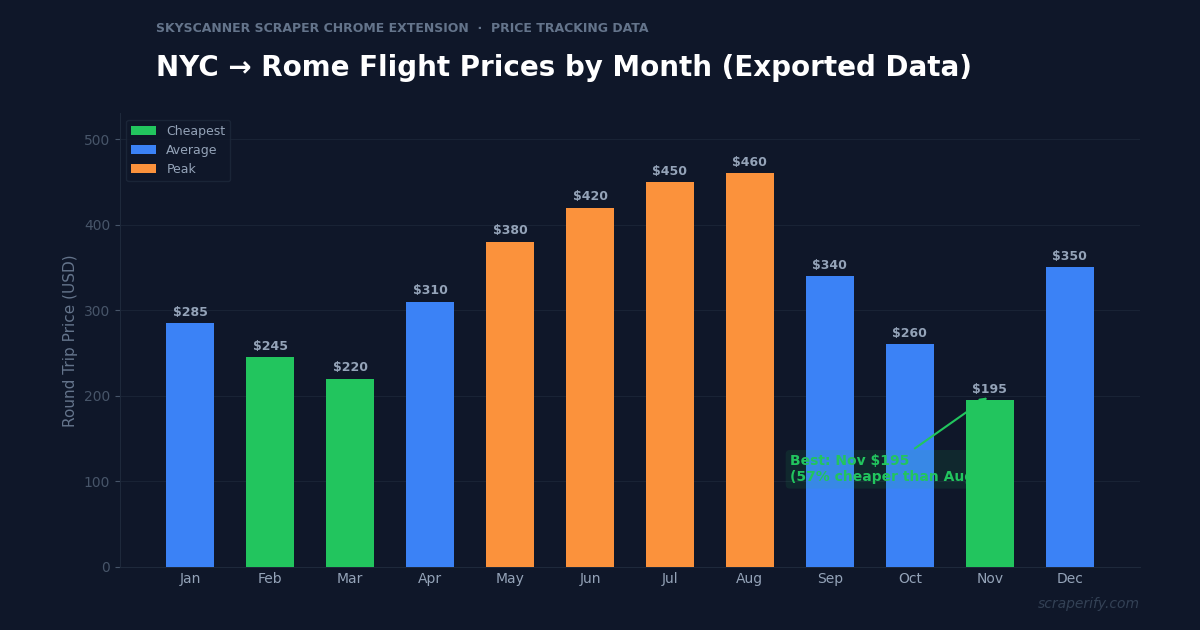
Price tracking over time. Flight prices fluctuate daily. By exporting the same search weekly with the Skyscanner scraper Chrome extension, you build a price history that reveals patterns. NYC to London might average $450 in June but drop to $280 in November. This historical data — visible only in a spreadsheet — tells you exactly when to book for the lowest fare.
Wedding and event planning. Guests flying from multiple cities to a wedding destination need coordinated flight information. Export flights from each origin city using the Skyscanner scraper Chrome extension, compile into one master spreadsheet, and share with guests. Include departure times, prices, and booking links so guests can quickly find and book the best option from their city.
Airline loyalty program optimization. Frequent flyers who collect miles on a specific airline need to see which flights earn them the most value. Export all options with the Skyscanner scraper Chrome extension, then add a column for your loyalty program status. Filter for your preferred airline and compare: is the $50 premium for a Delta flight worth 5,000 SkyMiles? With 30 flights in a spreadsheet, these calculations take seconds. Inside Skyscanner’s interface, they are impossible.
Travel blogging and content creation. Travel bloggers writing “cheapest flights from X to Y” articles use the Skyscanner scraper Chrome extension to gather real pricing data for their content. Instead of quoting a single price that may change tomorrow, they export dozens of data points and report averages, ranges, and cheapest months — making their content more accurate and trustworthy than competitors who guess.
Ready to export Skyscanner flights?
Install the Skyscanner scraper Chrome extension and start comparing flights in a spreadsheet. Free tier available.
Add to Chrome — Free5 Ways to Use the Skyscanner Scraper Chrome Extension
1. Find the Cheapest Month to Fly
Skyscanner has a “whole month” search that shows the cheapest fare for each day. Export this entire calendar view with the Skyscanner scraper Chrome extension and analyze it in a spreadsheet. You can calculate the average price per week, find the single cheapest day, and identify pricing patterns — like Tuesday departures being consistently cheaper than Friday departures. The Skyscanner scraper Chrome extension turns Skyscanner’s calendar view into actionable data.
Experienced travelers know that flying on Tuesdays and Wednesdays is often 20-30% cheaper than weekends. But this varies by route. The Skyscanner scraper Chrome extension data for your specific route reveals which day of the week actually offers the lowest fares — sometimes it is Monday, sometimes Wednesday, and for some routes there is no significant difference.
2. Compare Airlines on the Same Route
Export all flights for a specific route with the Skyscanner scraper Chrome extension, then filter by airline in your spreadsheet. Compare United vs Delta vs American on NYC to LA: average price, average duration, percentage of direct flights, and fare consistency. Some airlines have wildly fluctuating prices while others are more stable. The Skyscanner scraper Chrome extension data reveals these patterns.
3. Optimize Layover vs Direct Trade-offs
Direct flights cost more but save time. One-stop flights are cheaper but add hours. Use the Skyscanner scraper Chrome extension to export all options, then add a calculated column: “Price per hour saved.” If a direct flight costs $150 more but saves 5 hours compared to a one-stop, that is $30/hour for your time. Whether that trade-off is worth it depends on your situation — and the Skyscanner scraper Chrome extension data makes the calculation transparent.
This analysis gets even more interesting for long-haul routes. On a New York to Bangkok flight, the price difference between direct (if available) and one-stop can be $300-$600. But the time difference might be only 3-4 hours versus 8-12 hours with a long layover. By exporting all options with the Skyscanner scraper Chrome extension and calculating the time-versus-money trade-off for each, you can make an informed decision rather than defaulting to “cheapest” or “fastest” without understanding the trade-off.
4. Track Price Drops for Booking Timing
Airlines adjust prices daily based on demand, competition, and time until departure. Export the same flight search weekly with the Skyscanner scraper Chrome extension and track prices in a spreadsheet. When the price drops below your target threshold, book immediately. Many travelers save $100-$300 per ticket by booking during a price dip instead of at the first price they see.
The ideal booking window varies by route: domestic US flights are cheapest 1-3 months before departure, transatlantic flights 2-4 months, and Asia-Pacific flights 3-5 months. The Skyscanner scraper Chrome extension data for your specific route confirms or contradicts these general rules.
5. Digital Nomad Multi-City Planning
Digital nomads planning 3-6 month itineraries across multiple cities use the Skyscanner scraper Chrome extension to map out an entire trip. Export flights between each city pair (Bangkok→Bali, Bali→Lisbon, Lisbon→Mexico City), paste all exports into one spreadsheet, and calculate the total cost of different routing options. The Skyscanner scraper Chrome extension makes it easy to discover that routing through a hub city can save hundreds of dollars compared to direct city-to-city flights.
Skyscanner Scraper Chrome Extension vs Other Methods
SKYSCANNER SCRAPER: CHROME EXTENSION VS ALTERNATIVES
| Feature | Skyscanner Scraper Chrome Extension | Skyscanner API | Manual |
|---|---|---|---|
| Setup time | 30 sec | Days-weeks | 0 min |
| Coding required | No | Yes | No |
| API access needed | No | Yes (restricted) | No |
| CSV + Excel + JSON | ✓ | JSON only | ✗ |
| Speed (30 flights) | ~1 min | ~5 min | ~45 min |
The Skyscanner scraper Chrome extension is the only practical option for non-technical travelers. Skyscanner’s API requires a partnership application, is restricted to registered affiliates, and returns raw JSON that requires programming knowledge to parse. Most travelers and even most travel agents do not have API access. The Skyscanner scraper Chrome extension gives everyone the same data export capability without any technical barriers.
Manual copy-paste is what most people do today — and it is agonizingly slow. Copying 30 flight results with airline, price, times, stops, and duration takes 30-45 minutes and inevitably introduces errors. The Skyscanner scraper Chrome extension does the same job in under a minute with zero errors.
Tips for Using the Skyscanner Scraper Chrome Extension
Search “Everywhere” Then Export
Skyscanner’s “Everywhere” destination feature shows the cheapest flights from your airport to any destination in the world. Use the Skyscanner scraper Chrome extension to export this list and discover destinations you never considered. Sort by price to find absurdly cheap flights that might inspire your next trip.
Use Flexible Dates for Maximum Savings
Search with Skyscanner’s “whole month” or “cheapest month” option, then export with the Skyscanner scraper Chrome extension. The exported data shows daily price variations that reveal savings of 40-60% just by shifting your travel dates by a few days. Tuesday and Wednesday departures are often cheapest, but the Skyscanner scraper Chrome extension data confirms this for your specific route.
Export Multiple Route Options
If you are flexible on airports (JFK vs EWR vs LGA) or destinations (Rome vs Milan), run separate Skyscanner searches and export each with the Skyscanner scraper Chrome extension. Combine into one spreadsheet and sort by price. Airport flexibility alone can save $50-$200 per ticket.
Build a Price Alert Spreadsheet
Export the same route weekly with the Skyscanner scraper Chrome extension. Add a date column to each export. Over 4-6 weeks, you build a price history that shows whether fares are trending up, down, or stable. Book when prices dip below the 4-week average — this data-driven approach consistently outperforms booking at random.
Here is a concrete example: you want to fly London to New York in March. Start exporting with the Skyscanner scraper Chrome extension in December. Week 1: cheapest fare is $380. Week 2: $365. Week 3: $340. Week 4: $390 (holiday booking surge). Week 5: $325. You can see the trend — prices are generally declining but had a spike during the holidays. Your 4-week average is $355. When the fare drops to $325 (8% below average), that is your signal to book. Without this historical data from the Skyscanner scraper Chrome extension, you would have no idea whether $380 was a good price or an inflated one.
Check Different Departure Airports
If you live near multiple airports, the Skyscanner scraper Chrome extension makes airport comparison effortless. Export NYC-to-London from JFK, EWR, and LGA separately. Combine into one sheet. Often, one airport is $100-$200 cheaper than the others for the same destination, and the savings easily justify a longer drive to the airport. The Skyscanner scraper Chrome extension data makes this comparison take 5 minutes instead of 30 minutes of manual back-and-forth searching.
Share Exports for Group Decisions
For group travel, export options with the Skyscanner scraper Chrome extension and share via Google Sheets. Add a column for each traveler to mark “works for me” or “doesn’t work.” The flight with the most checkmarks wins. This structured approach eliminates the endless group chat debate about flight options.
Who Uses the Skyscanner Scraper Chrome Extension?
Budget Travelers — Travelers who optimize every dollar use the Skyscanner scraper Chrome extension to compare dozens of options systematically. Instead of scrolling through Skyscanner and hoping they remember the best deal, they export everything, sort by price, and book the cheapest option with confidence. The Skyscanner scraper Chrome extension saves them $50-$300 per trip through better comparison.
Travel Agents — Agents booking flights for clients use the Skyscanner scraper Chrome extension to present professional, organized options. Export flight data, format it as a comparison table, and send to clients for approval. This professional presentation — only possible with exported data — builds trust and speeds up decision-making.
Corporate Travel Managers — Companies booking flights for employees need documentation of flight options and cost optimization. The Skyscanner scraper Chrome extension exports provide auditable records showing that the selected flight was the best value among available options. Travel managers use the Skyscanner scraper Chrome extension data to negotiate with airlines and justify travel budgets.
Digital Nomads — Remote workers planning multi-city itineraries across continents use the Skyscanner scraper Chrome extension to map out entire trip routes. Exporting flight data between 5-10 city pairs and combining into one spreadsheet reveals the cheapest routing through different hub cities.
Wedding and Event Planners — Planners coordinating travel for guests from multiple origin cities use the Skyscanner scraper Chrome extension to create flight guides. Export options from each departure city, compile into a master spreadsheet, and share with guests alongside accommodation and event details.
Study Abroad Students and Parents — Students planning semester abroad travel and their parents comparing flight costs use the Skyscanner scraper Chrome extension to evaluate options systematically. The exported spreadsheet makes it easy to compare direct vs connecting flights, different airlines’ baggage policies, and optimal booking timing.
Frequent Flyers and Points Optimizers — Travelers who optimize award bookings and credit card points use the Skyscanner scraper Chrome extension to find the best cash fares as a baseline. By knowing what a flight costs in cash, they can calculate the cents-per-point value of award redemptions and decide whether to pay cash or use miles. The Skyscanner scraper Chrome extension exports the cash price data that anchors this entire calculation.
Conference and Trade Show Attendees — Professionals attending industry conferences need to book flights early when prices are lowest. The Skyscanner scraper Chrome extension lets them export and compare flight options months in advance, set a target price based on the data, and monitor prices weekly until they hit that target. Many conference attendees save $200-$400 by booking strategically based on exported price trends rather than booking last-minute at peak prices.
Skyscanner Scraper Chrome Extension — Frequently Asked Questions
Is the Skyscanner scraper Chrome extension free?
The Skyscanner scraper Chrome extension offers a free tier. Paid plans start at $19.99/month. Lifetime access to the Skyscanner scraper Chrome extension is $79.
Does the Skyscanner scraper Chrome extension work with all Skyscanner searches?
Yes. The Skyscanner scraper Chrome extension works with one-way, return, multi-city, flexible date, and “Everywhere” destination searches.
Is my data private with the Skyscanner scraper Chrome extension?
Yes. The Skyscanner scraper Chrome extension processes everything locally in your browser. No flight data leaves your computer.
Can I export Skyscanner hotel or car rental results?
The Skyscanner scraper Chrome extension is optimized for flight search results. Hotel and car rental exports may have limited field coverage.
How many flights can the Skyscanner scraper Chrome extension export?
The Skyscanner scraper Chrome extension captures all flights that Skyscanner loads in your browser. Scroll down to load more results before exporting.
Will the Skyscanner scraper Chrome extension affect flight prices?
No. The Skyscanner scraper Chrome extension only reads data from the page — it does not interact with Skyscanner’s pricing engine. Prices are determined by airlines and booking agents, not by browser extensions.
Can I share Skyscanner scraper Chrome extension exports?
Yes. Export to Excel or CSV and share via email, Google Sheets, or any file sharing service. The Skyscanner scraper Chrome extension exports are standard spreadsheet files that anyone can open.
Start Exporting Skyscanner Flights Today
Stop comparing flights from memory. The Scraperify Skyscanner scraper Chrome extension exports all flight search results to Excel, CSV, or JSON so you can compare, filter, and decide with data.
What the Skyscanner scraper Chrome extension gives you:
- Skyscanner scraper Chrome extension one-click export from any flight search
- Complete data — airlines, prices, times, stops, durations, booking links
- Skyscanner scraper Chrome extension Excel, CSV, and JSON formats
- 100% local — the Skyscanner scraper Chrome extension keeps your data private
- Works with all Skyscanner search types — one-way, return, multi-city, flexible
- Free tier — try the Skyscanner scraper Chrome extension before you buy
Whether you are a budget traveler hunting the cheapest fare, a travel agent presenting options to clients, or a corporate manager optimizing team travel, the Skyscanner scraper Chrome extension is the fastest way to get Skyscanner data into a spreadsheet.
Export Skyscanner Flights in One Click
Join travelers who use the Skyscanner scraper Chrome extension to find and book the best flights with data, not guesswork.
Add the Skyscanner Scraper to Chrome →Free tier available · Paid plans from $19.99/month · $79 lifetime